
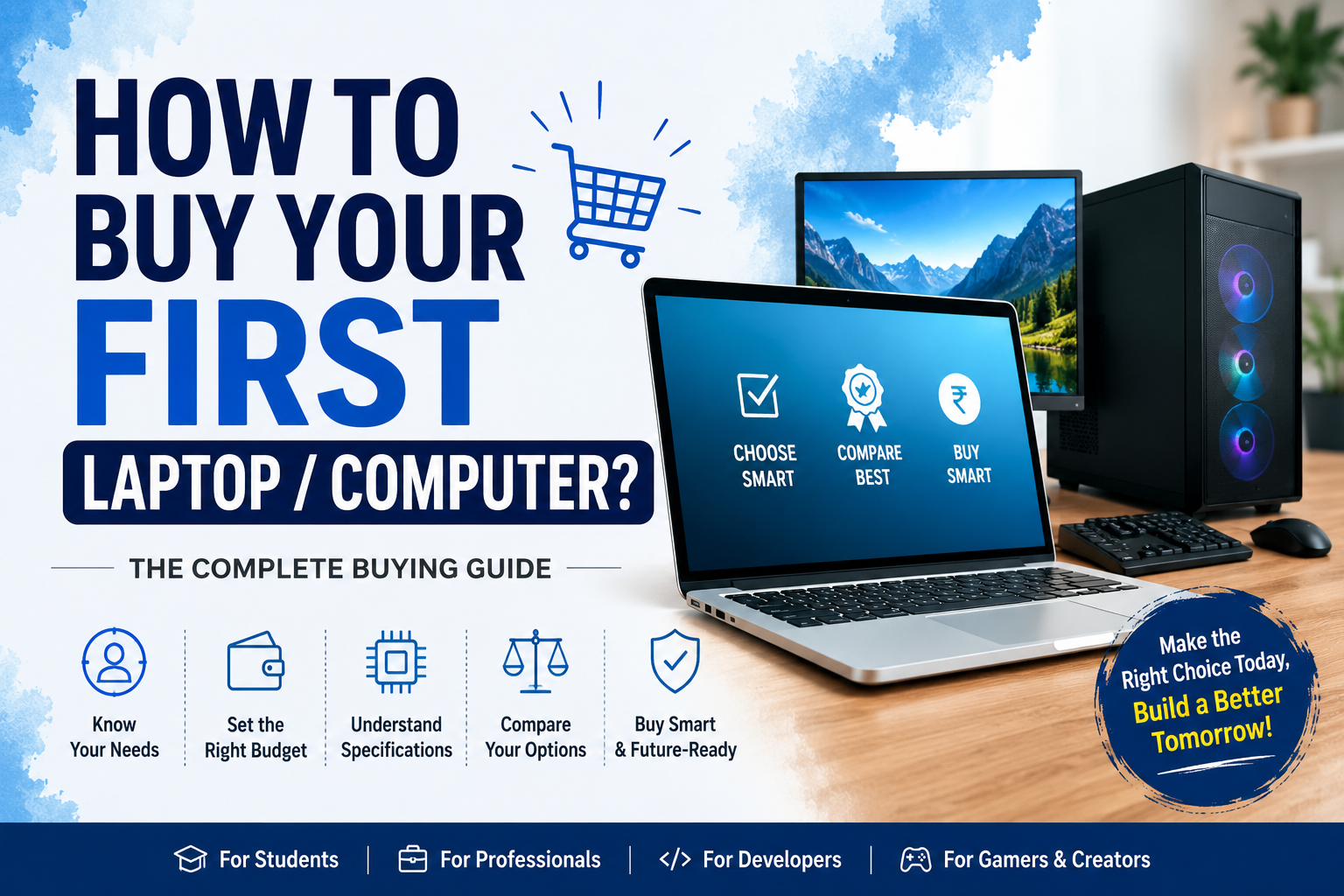
Buying your first laptop or computer can be confusing.
You may see specifications such as Intel Core, AMD Ryzen, RAM, SSD, NVMe, GPU, refresh rate, battery capacity, Wi-Fi,
USB-C and many other technical terms. Every manufacturer also offers multiple models at different prices, making it
difficult to know which computer is actually right for you.
The biggest mistake is to assume that the most expensive computer is automatically the best computer.
It isn’t.
The right computer is the one that provides the performance you need, fits your budget, works with the software you use,
and remains useful for years to come.
This guide explains everything you should consider before buying your first laptop or desktop computer—from identifying
your requirements and setting a budget to understanding processors, RAM, SSDs, graphics cards, displays, batteries,
ports, operating systems, warranty and after-sales service.
Your first step should always be:
Understand your needs before looking at specifications.
1. Decide What You Will Use the Computer For
Before searching for a laptop or desktop, write down what you actually want to do with it.
Your requirements should determine your specifications—not the other way around.
For example, someone who only needs a computer for MS Office and online classes does not need the same hardware as a
video editor, programmer or professional gamer.
Your computer usage can generally be divided into four categories.
Basic Computer Work
This includes:
- Web browsing
- MS Word
- MS Excel
- PowerPoint
- Google Workspace
- Online classes
- Watching videos
- Documents and PDFs
- Basic accounting
- Video meetings
- Printing and scanning
- General everyday tasks
You do not need an expensive gaming or workstation laptop for these activities.
A modern entry-level or mid-range processor, 8GB RAM and an SSD can provide a good starting point.
Professional Work
Professional users may work with:
- Business applications
- Accounting software
- Advanced Excel
- Data analysis
- Business presentations
- CRM software
- Project management applications
- Large documents
- Multiple browser tabs
- Video conferencing
- Cloud applications
For these users, multitasking becomes more important.
A computer with 16GB RAM and a 512GB SSD is generally a much better long-term target than an 8GB/256GB
configuration.
However, the exact requirement depends on the software and workload.
Programming and Development
Programming requirements vary significantly.
A web developer may work with:
- VS Code
- Git
- Node.js
- PHP
- Laravel
- React
- databases
- Docker
- local servers
- browsers
- development tools
An Android or iOS developer may require considerably more resources.
A cybersecurity student may also use:
- Virtual machines
- Kali Linux
- Windows virtual machines
- Linux environments
- networking tools
- security testing tools
For programming and development, 16GB RAM and a 512GB SSD are sensible targets for many users.
If you regularly run multiple virtual machines, containers, large databases or heavy development environments,
32GB RAM or more can become valuable.
Graphic Design and Gaming
Graphic designers, video editors, 3D artists and gamers can have substantially higher hardware requirements.
Typical applications may include:
- Adobe Photoshop
- Adobe Illustrator
- Premiere Pro
- After Effects
- Blender
- AutoCAD
- 3D rendering software
- Game engines
- Modern PC games
These workloads can benefit from:
- Higher-performance CPUs
- More RAM
- Fast SSD storage
- Dedicated graphics
- Better displays
- Better cooling
For this category, 16GB RAM is a practical starting point, while 32GB or more can make sense for
heavier professional workloads.
2. Laptop or Desktop: Which Should You Buy?
The second major decision is whether you need a laptop or desktop.
Neither is universally better.
The correct choice depends on how and where you work.
Laptop
A laptop is ideal if you:
- Travel frequently
- Attend college or school
- Work from multiple locations
- Need a built-in battery
- Want an all-in-one computer
- Have limited desk space
- Need a webcam, keyboard, screen and touchpad in one device
The biggest advantage of a laptop is portability.
You can take your computer to college, office, meetings, cafés or while travelling.
Desktop
A desktop is usually better if:
- You work from one location
- Maximum performance is important
- You want better upgradeability
- You want to build a gaming PC
- You need multiple monitors
- You perform demanding workloads
- You want easier component replacement
- You want to upgrade individual components over time
A desktop also gives you more flexibility when selecting components.
You can typically replace or upgrade components such as:
- RAM
- Storage
- Graphics card
- Processor
- Power supply
- Cooling
- Monitor
However, remember that a desktop computer is not just the CPU cabinet.
You may also need:
- Monitor
- Keyboard
- Mouse
- Speakers/headphones
- Webcam
- UPS
- Wi-Fi adapter, if required
Therefore, calculate the complete setup cost, not just the price of the desktop tower.
3. Laptop vs Desktop Comparison
| Feature | Laptop | Desktop |
|---|---|---|
| Portability | Excellent | Very limited |
| Performance | Good to Excellent | Good to Excellent |
| Upgradeability | Limited | Excellent |
| Repairability | Model-dependent | Generally easier |
| Battery | Built-in | Requires continuous power |
| Space | Requires less space | Requires more space |
| Cooling | Compact design | Generally better cooling potential |
| Gaming | Good to Excellent | Excellent |
| Multiple Monitors | Possible | Excellent |
| Long-Term Upgrades | Limited | Excellent |
| Convenience | Excellent | Requires separate peripherals |
Simple rule:
Choose a laptop for portability and convenience.
Choose a desktop for performance, flexibility and upgrades.
4. Set Your Budget Before Choosing a Computer
One of the most important steps is deciding how much you can realistically spend.
Do not start by searching for the most expensive computer you can afford.
Instead, ask:
What computer do I need for my work, and what is a sensible budget for it?
Your budget should consider:
- Computer price
- Accessories
- Software
- Warranty
- Extended warranty, if needed
- External storage
- Monitor, for desktops
- UPS, for desktops
- Laptop bag
- Mouse
- Keyboard
- External monitor, if required
A higher price does not automatically mean a better computer for you.
For example, spending more on a powerful dedicated GPU makes little sense if you only use MS Word, Excel, browsing and
online classes.
Similarly, buying a very cheap computer may become expensive in the long run if you need to replace it sooner or upgrade
multiple components.
Think about value, not just price.
A good buying decision balances:
Price + Performance + Quality + Reliability + Future Requirements
5. Understand Computer Specifications
The most important specifications to understand are:
- Processor
- RAM
- Storage
- Graphics
- Display
- Battery
- Ports and connectivity
- Keyboard and webcam
- Build quality
- Operating system
- Upgradeability
- Warranty and service
Let’s understand each one.
6. Processor: The Brain of Your Computer
The processor, or CPU, performs the majority of general computing operations.
Common processor families include:
Intel
Modern Intel laptop processors include families such as:
- Intel Core
- Intel Core Ultra
Intel’s current naming has evolved from the traditional Core i3/i5/i7 system. Current Core processors can use a shorter
numerical naming system, while Core Ultra processors use names such as Core Ultra 5, Core Ultra 7 and Core Ultra 9.
AMD
AMD’s laptop lineup includes multiple Ryzen families and generations, including Ryzen 3, Ryzen 5, Ryzen 7 and Ryzen 9
classes as well as newer Ryzen AI products.
The important lesson is:
Do not compare processors only by the name “i5”, “i7”, “Ryzen 5” or “Ryzen 7”.
You need to check the exact processor model.
7. Why the Exact Processor Model Matters
Two processors can both be called “Core 5” or “Ryzen 5” but have very different characteristics.
Processor performance depends on factors such as:
- Architecture
- Number of CPU cores
- Number of threads
- Clock speeds
- Cache
- Power limits
- Integrated graphics
- Generation/series
- Laptop cooling
- Manufacturer configuration
For example, AMD’s current Ryzen laptop specifications show that different Ryzen 5 processors can have different core
counts, clock speeds and power characteristics.
Therefore:
Always check the complete processor model before purchasing.
8. Don’t Assume Core i7 Is Always Better Than Core i5
This is one of the most common buying mistakes.
An older high-end processor may not necessarily be a better choice than a newer mid-range processor.
The same principle applies to AMD Ryzen.
Instead of asking:
“Is this an i7?”
Ask:
“What exact processor is this?”
Then compare the actual specifications and benchmarks relevant to your workload.
Intel provides processor comparison resources that allow buyers to compare specific laptop processors rather than
relying only on the product family name.
9. Processor Suffixes Also Matter
Laptop processors often have suffixes or model identifiers.
Depending on the processor family, you may see terms such as:
- U
- H
- HX
- P
- V
- and others
These can indicate different design priorities or product classes.
For example, Intel’s documentation identifies laptop processor families using suffixes such as HX, H, U, P and others.
The important lesson for beginners is not to memorize every suffix.
Instead:
Check what the specific processor is designed for—battery-efficient everyday computing or
higher-performance workloads.
10. How Much RAM Do You Need?
RAM stands for Random Access Memory.
RAM temporarily stores data that applications are actively using.
Think of RAM as your computer’s working space.
More RAM allows the computer to keep more active applications and data available without relying as heavily on slower
storage.
RAM becomes especially important when you:
- Open many browser tabs
- Run multiple applications
- Use development environments
- Edit photos
- Edit videos
- Run virtual machines
- Work with large datasets
- Multitask heavily
11. 4GB, 8GB, 16GB or 32GB RAM?
4GB
This may meet the minimum requirements of some operating systems, but it is not a good target for most new computers.
Microsoft’s current Windows 11 minimum requirements list 4GB RAM, but minimum operating-system
requirements should not be confused with a recommended specification for comfortable everyday use.
8GB
Suitable for:
- Basic browsing
- Office
- Online classes
- Documents
- Light multitasking
16GB
A strong choice for:
- Programming
- Professional work
- Development
- Data analysis
- Multitasking
- Photo editing
- General long-term use
32GB+
Useful for:
- Video editing
- 3D work
- Virtual machines
- Large datasets
- Professional development
- Heavy multitasking
- Advanced creative workflows
Practical recommendation
For a new computer:
8GB is a practical basic target; 16GB is a better long-term target for many users.
12. Check Whether RAM Is Upgradeable
This is often overlooked.
Some laptops have:
- Upgradeable RAM
- Partially soldered RAM
- Fully soldered RAM
If the RAM is soldered, you may not be able to upgrade it later.
Therefore, before purchasing:
Check the maximum supported RAM and whether the RAM is upgradeable.
For example, buying an 8GB laptop may be reasonable if it can easily be upgraded to 16GB or 32GB.
But an 8GB machine with no upgrade path may be less attractive for long-term use.
13. Storage: SSD vs HDD
Storage is where your:
- Operating system
- Applications
- Documents
- Photos
- Videos
- Games
- Projects
are stored.
The two major storage technologies you will encounter are:
HDD
Hard Disk Drive
SSD
Solid State Drive
For a new laptop, an SSD should generally be preferred for the primary operating-system and application drive because it
provides a much more responsive experience than a traditional mechanical HDD.
14. Why SSD Matters
An SSD can improve everyday responsiveness such as:
- Faster system startup
- Faster application loading
- Faster file access
- Faster project loading
- Better overall system responsiveness
An SSD has no spinning mechanical disk like a traditional HDD.
For a modern laptop:
Prefer SSD storage rather than HDD-only storage.
15. How Much Storage Do You Need?
256GB SSD
Suitable for:
- Basic computing
- Office work
- Browsing
- Online classes
But it can fill up quickly.
512GB SSD
A strong starting point for:
- Students
- Programming
- Professional work
- General computing
1TB SSD
Better for:
- Gaming
- Video editing
- Large software collections
- Large project files
- Photos and videos
2TB or more
Useful for:
- Professional video production
- Large datasets
- 3D projects
- Large game libraries
- Extensive media collections
Remember that advertised capacity is not the same as the amount of free space you will see after the operating system
and other software are installed.
16. NVMe SSD: What Does It Mean?
You may see laptops advertised with:
NVMe SSD
NVMe is a storage protocol designed for high-speed solid-state storage, commonly used with PCIe interfaces.
However, don’t choose a laptop simply because the word “NVMe” appears in the specification.
Also check:
- Capacity
- Interface
- Performance
- Upgradeability
- Number of storage slots
For most users, the more important question is:
Is the computer using fast SSD storage, and is there enough capacity for my work?
17. Graphics: Do You Need a Dedicated GPU?
The GPU, or Graphics Processing Unit, handles graphics processing.
There are two broad categories.
Integrated Graphics
Graphics processing is integrated into the processor/platform.
Suitable for:
- Office
- Browsing
- Online classes
- Programming
- Movies
- General productivity
- Light gaming
Modern integrated graphics can be surprisingly capable.
AMD, for example, offers Ryzen processors with integrated Radeon graphics, including newer designs intended for
demanding portable workloads.
18. Dedicated Graphics
A dedicated GPU has its own graphics hardware and typically dedicated video memory.
It can be useful for:
- Gaming
- Video editing
- 3D modelling
- Animation
- Rendering
- CAD
- AI workloads
- GPU-accelerated creative applications
NVIDIA’s current laptop GPU lineup includes several RTX 50-series models with different memory configurations and power
ranges, demonstrating why simply knowing the GPU family is not enough.
19. Don’t Buy a Powerful GPU You Don’t Need
A dedicated GPU can increase:
- Price
- Power consumption
- Heat
- Weight
- Cooling requirements
If your main activities are:
- MS Office
- Browsing
- Online classes
- Programming
- Accounting
- General business work
you may not need a dedicated GPU.
On the other hand, if you want to play modern games or perform serious 3D/video work, a dedicated GPU may be an
important part of your purchase.
20. GPU Memory and Power Also Matter
When comparing gaming laptops, don’t look only at:
“RTX 5060”
or another GPU name.
Check:
- GPU model
- VRAM
- GPU power/TGP
- Cooling
- Laptop configuration
- Display resolution
- CPU
- RAM
The same GPU family can be configured differently across laptops. NVIDIA’s published specifications show different power
ranges and memory configurations across current laptop GPUs.
Therefore:
GPU model alone does not tell the complete performance story.
21. Display: One of the Most Important Parts
You may spend several hours every day looking at your computer screen.
Therefore, don’t ignore the display.
Check:
- Screen size
- Resolution
- Panel technology
- Brightness
- Color coverage
- Color accuracy
- Contrast
- Viewing angles
- Refresh rate
- Response time
- HDR support
- Anti-glare characteristics
22. What Screen Size Should You Choose?
13–14 inch
Good for:
- Students
- Travellers
- Portability
- Frequent commuting
15–16 inch
Good balance between:
- Screen space
- Productivity
- Portability
17 inch and above
Useful for:
- Gaming
- Large workspaces
- Desktop replacement
But larger laptops are generally less convenient to carry.
23. Display Resolution
Common resolutions include:
- HD
- Full HD
- 1920 × 1200
- 2K/QHD
- 2560 × 1600
- 4K
For general laptop use, Full HD or better is a practical target.
Higher resolutions provide more detail, but they can also affect:
- Price
- Battery life
- GPU requirements
Therefore, don’t automatically choose the highest resolution.
Choose the resolution appropriate for your work.
24. Refresh Rate
Refresh rate is measured in Hertz (Hz).
A 60Hz display refreshes the image up to 60 times per second.
Higher refresh rates such as:
- 90Hz
- 120Hz
- 144Hz
- 165Hz
- 240Hz
can provide smoother motion and scrolling.
Higher refresh rates are especially useful for:
- Gaming
- Fast-moving content
- Some creative workflows
For normal office work, 60Hz can still be perfectly usable.
25. Brightness and Color Quality
For outdoor or bright-room use, screen brightness matters.
For creative professionals, color quality is even more important.
Graphic designers and photographers should investigate:
- sRGB coverage
- DCI-P3 coverage
- Adobe RGB coverage where relevant
- Color accuracy
- Factory calibration
- Panel type
Don’t assume that a high-resolution screen automatically has good color reproduction.
HDR should also be evaluated carefully. VESA’s DisplayHDR certification uses defined performance tiers involving
brightness, color gamut, contrast and other measurements.
26. Battery Life
Laptop battery life depends on much more than battery capacity.
Important factors include:
- Battery capacity
- Processor efficiency
- Display resolution
- Display brightness
- Refresh rate
- GPU usage
- Applications
- Wi-Fi usage
- Background processes
- Power settings
- Operating system
Therefore:
A larger battery does not automatically guarantee longer battery life.
When manufacturers advertise battery life, check the testing conditions because different brightness levels, workloads
and configurations can produce very different results.
27. Check Battery Capacity in Wh
Laptop batteries are commonly specified in Watt-hours (Wh).
For example, a laptop might have a battery rated at 50Wh, 60Wh, 70Wh or more.
But don’t compare battery capacity alone.
A laptop with a smaller battery and highly efficient hardware may outlast a laptop with a larger battery and a
power-hungry processor/GPU.
28. Ports and Connectivity
Before purchasing a laptop, check the physical ports.
Common ports include:
- USB-A
- USB-C
- HDMI
- 3.5mm audio
- Ethernet
- SD card reader
- microSD card reader
Also check:
- Wi-Fi
- Bluetooth
- USB-C charging
- External display support
29. Don’t Assume Every USB-C Port Is the Same
USB-C describes the physical connector shape.
The capabilities of a USB-C port can vary.
Depending on the laptop, USB-C may support different combinations of:
- Data transfer
- Charging
- Display output
- Docking
- Other features
Therefore, always check the manufacturer’s specifications for the exact model.
30. Keyboard and Trackpad
A specification sheet cannot tell you everything about the keyboard.
If possible, physically test:
- Key spacing
- Key travel
- Keyboard layout
- Backlighting
- Number pad
- Typing comfort
Also test the trackpad.
For programmers and writers, keyboard quality can be more important than a slightly faster processor.
31. Webcam and Microphone
For students and professionals, the webcam and microphone matter because of:
- Online classes
- Interviews
- Meetings
- Presentations
- Video calls
Check:
- Webcam resolution
- Image quality
- Microphone quality
- Privacy shutter
- Camera placement
Don’t judge a webcam only by its megapixel or resolution number.
32. Build Quality
A laptop is a physical device that you will carry, open, close and use every day.
Check:
- Hinge quality
- Keyboard flex
- Screen stability
- Body construction
- Weight
- Cooling vents
- Trackpad
- Charger quality
A powerful laptop with poor ergonomics can be frustrating to use.
33. Cooling and Thermal Performance
Performance is not determined only by the CPU and GPU.
Cooling also matters.
A powerful processor inside a poorly cooled laptop may not sustain its maximum performance for long periods.
For gaming and professional workloads, investigate:
- Cooling design
- Number and size of fans
- Heat pipes/vapor chambers
- Air intake and exhaust
- Sustained performance reviews
- Fan noise
For light users, this is much less important.
34. Operating System
Your operating system affects software compatibility, user experience and hardware support.
Windows
Suitable for:
- General computing
- Business applications
- Gaming
- Programming
- Wide hardware compatibility
Windows 11 has official minimum hardware requirements including a compatible 64-bit processor with at least two cores,
4GB RAM, 64GB storage, UEFI/Secure Boot capability and TPM 2.0, among other requirements.
However:
Minimum requirements are not recommended buying specifications.
A computer meeting only the minimum requirements may not provide the experience you actually want.
macOS
A good option for users who:
- Prefer Apple’s ecosystem
- Already use iPhone/iPad
- Work with compatible creative software
- Prefer macOS
- Want strong hardware/software integration
Always check whether the software you require is available and compatible with your intended Mac.
Linux
Linux can be an excellent option for:
- Developers
- System administrators
- Cybersecurity learners
- Server environments
- Open-source enthusiasts
However, check hardware compatibility and software availability before buying.
35. Upgradeability
A computer should be evaluated not only by what it has today, but also by what you can change later.
Check whether you can upgrade:
- RAM
- SSD
- Wi-Fi card, where applicable
- Other components
Desktop computers generally offer significantly more upgrade flexibility than laptops.
Some modern laptops have soldered RAM or storage configurations that limit future upgrades.
Therefore:
Upgradeability can be an important part of long-term value.
36. Warranty and After-Sales Service
Don’t purchase a computer based solely on specifications.
Also check:
- Warranty duration
- On-site service
- Service centre availability
- Accidental damage protection
- Extended warranty
- Battery warranty
- International warranty, if relevant
A computer with excellent specifications is not necessarily a good purchase if getting it repaired is difficult.
For buyers in India, check the manufacturer’s service network in your city before purchasing an expensive laptop.
37. Online vs Offline Buying
Both options have advantages.
Buying Online
Advantages:
- Easy price comparison
- Large selection
- Customer reviews
- Convenient delivery
- Frequent promotions
But verify:
- Exact model number
- Seller
- Warranty
- Return/replacement policy
- Configuration
Buying Offline
Advantages:
- You can physically inspect the device
- You can test the keyboard
- You can inspect the display
- You can check build quality
- You can ask questions
But don’t allow sales pressure to determine your purchase.
Always ask for the:
Exact model number and complete specification sheet.
38. Don’t Be Influenced by Discounts Alone
A laptop advertised as:
“₹80,000 → ₹55,000”
does not automatically mean you are saving ₹25,000.
The important question is:
Is ₹55,000 a good price for the hardware and configuration I am getting?
Compare:
- CPU
- RAM
- SSD
- GPU
- Display
- Battery
- Build
- Warranty
- Service
A discount percentage is marketing.
The actual configuration is what matters.
39. Don’t Buy Based on Brand Alone
Brands can offer products across many different quality and price segments.
A famous brand does not mean every model is automatically better.
When comparing two computers, compare the actual products.
Look at:
- Specifications
- Build quality
- Reviews
- Service
- Warranty
- Upgradeability
- Price
40. Don’t Buy Based Only on “i5”, “i7” or “Ryzen 5”
This is worth repeating.
The processor family name is only one part of the story.
Always identify:
- Exact CPU model
- CPU generation/series
- Cores
- Threads
- Power class
- Integrated graphics
- Intended workload
Intel itself provides processor identification and comparison resources for checking exact processor numbers and
generations.
41. Recommended Specifications by Usage
The following are practical buying targets—not universal minimum requirements.
| Specification | Basic Computer Work | Professional Work | Programming | Graphic Design / Gaming |
|---|---|---|---|---|
| Processor | Modern entry-level | Modern Core 5/Ryzen 5 class or better | Modern Core 5/Ryzen 5 class or better | Higher-performance Core/Ryzen class |
| RAM | 8GB | 16GB | 16GB | 16GB minimum; 32GB for heavy work |
| Storage | 256–512GB SSD | 512GB SSD | 512GB SSD | 512GB–1TB+ SSD |
| Graphics | Integrated | Integrated or dedicated, depending on software | Integrated usually sufficient | Dedicated GPU generally recommended |
| Display | Full HD | Full HD or better | Full HD or better | High-quality display; high refresh rate for gaming |
| Battery | Good battery life | Good battery life | Good battery life | Performance-focused |
| Priority | Value & reliability | Multitasking | RAM + CPU + storage | GPU + CPU + RAM + cooling |
These recommendations expand the usage-based specification table in your presentation.
42. What Should a Student Buy?
For a student doing:
- Online classes
- MS Office
- Browsing
- Programming
- Basic design
a practical target could be:
Processor: Modern entry/mid-range processor
RAM: 8GB minimum, 16GB preferred
Storage: 512GB SSD
Graphics: Integrated graphics
Display: Full HD
Priority: Battery, portability and keyboard
If the student is studying programming, engineering, design or other demanding subjects, move toward 16GB RAM and a
stronger processor.
43. What Should a Programmer Buy?
For programming:
Processor: Modern Core 5/Ryzen 5 class or better
RAM: 16GB
Storage: 512GB SSD or more
GPU: Integrated usually sufficient
Display: Full HD or better
Ports: USB-C, USB-A and external display support where needed
If you use:
- Docker
- Multiple virtual machines
- Android Studio
- Large databases
- Local servers
- AI/ML workloads
consider:
32GB RAM or more and a higher-performance processor.
44. What Should a Graphic Designer Buy?
For graphic design:
Processor: Modern mid/high-performance CPU
RAM: 16GB minimum
Storage: 512GB–1TB SSD
GPU: Depending on applications
Display: High-quality, color-accurate display
Priority: Display + RAM + CPU + GPU
For professional photography, video or color-critical work, display quality may be more important than simply having the
highest refresh rate.
45. What Should a Gamer Buy?
For gaming:
Processor: Modern performance CPU
RAM: 16GB
Storage: 1TB preferred for a larger game library
GPU: Dedicated GPU
Display: High refresh rate
Cooling: Important
Power: Important for gaming laptops
For gaming laptops, investigate the exact GPU configuration and power limits rather than choosing only by GPU family
name. Current NVIDIA laptop GPUs, for example, are available across different power ranges and memory configurations.
46. What Should a Video Editor Buy?
For video editing:
Processor: High-performance CPU
RAM: 16GB minimum; 32GB preferred for heavier workloads
Storage: 1TB or more is often useful
GPU: Dedicated GPU can be valuable
Display: Good color accuracy
Cooling: Important
Video editing can quickly consume storage.
A video editor should consider having:
- Internal SSD
- External SSD
- Backup storage
rather than relying on a single drive.
47. Think About the Next 3–5 Years
Don’t only ask:
“Will this laptop work today?”
Ask:
“Will this laptop still meet my requirements in a few years?”
Think about:
- Future software
- Increasing storage needs
- More demanding applications
- RAM requirements
- Operating-system compatibility
- Battery ageing
- Upgradeability
- Warranty
- Repairability
Buying a slightly better balanced configuration today can sometimes be more economical than buying a very basic
configuration and replacing it sooner.
48. Common Laptop Buying Mistakes
Mistake 1: Buying only because of the brand
Brand reputation matters, but the specific model matters more.
Mistake 2: Looking only at the processor
A powerful processor cannot compensate for a poor display, inadequate RAM, weak cooling or insufficient storage.
Mistake 3: Buying too little RAM
8GB can be enough for basic use, but 16GB provides more flexibility for many modern workloads.
Mistake 4: Choosing HDD-only storage
For a new everyday laptop, SSD storage is generally the better choice.
Mistake 5: Ignoring the display
You may spend thousands of hours looking at the screen.
Mistake 6: Buying a powerful GPU unnecessarily
If you don’t game or perform GPU-intensive work, it may be wasted money.
Mistake 7: Ignoring upgradeability
Check whether RAM and storage can be upgraded.
Mistake 8: Ignoring warranty
A computer is an investment. Service matters.
Mistake 9: Not checking the exact model
Two laptops with similar names may have completely different configurations.
Mistake 10: Spending the entire budget on the computer
Remember the cost of accessories and peripherals.
49. A Simple Method to Compare Two Laptops
Suppose you have two laptops.
Don’t immediately choose the one with the higher discount.
Create a comparison:
| Category | Laptop A | Laptop B |
|---|---|---|
| Exact CPU | Check | Check |
| RAM | Check | Check |
| RAM Upgrade | Check | Check |
| SSD | Check | Check |
| SSD Upgrade | Check | Check |
| GPU | Check | Check |
| Display | Check | Check |
| Battery | Check | Check |
| Weight | Check | Check |
| Ports | Check | Check |
| Keyboard | Test | Test |
| Webcam | Check | Check |
| Cooling | Check | Check |
| Warranty | Check | Check |
| Service | Check | Check |
| Price | Check | Check |
Then choose the computer that provides the best combination for your actual usage.
50. A 10-Question Buying Checklist
Before purchasing, answer these questions:
1. What will I use the computer for?
2. Do I need a laptop or desktop?
3. What is my realistic budget?
4. What exact processor am I getting?
5. How much RAM do I need?
6. How much SSD storage do I need?
7. Do I need a dedicated GPU?
8. Is the display suitable for my work?
9. Can I upgrade the computer later?
10. What warranty and after-sales service am I getting?
If you can confidently answer all ten questions, you are much less likely to make an impulse purchase.
51. The Final Buying Formula
Choosing a computer doesn’t have to be complicated.
Follow this process:
Step 1 — Identify Your NEED
What will you use it for?
↓
Step 2 — Set Your BUDGET
How much can you realistically spend?
↓
Step 3 — Understand the SPECS
CPU + RAM + SSD + GPU + Display + Battery
↓
Step 4 — COMPARE
Compare complete configurations, not advertisements.
↓
Step 5 — BUY SMART
Check warranty, service, upgradeability and future requirements.
Buy Smart, Not Just Expensive
The best computer isn’t necessarily the most powerful one.
It is the one that provides the right balance between:
Performance
Price
Quality
Reliability
Portability
Future Requirements
Before making your purchase, remember:
Buy smart, not just expensive. Choose the computer that fits your needs today and supports your
goals tomorrow.
Your first computer is not just a purchase. It can become your tool for learning, programming, creating, working,
communicating and building your career.
So take your time, understand your requirements, compare your options and make an informed decision.
Frequently Asked Questions
Is 8GB RAM enough for a laptop?
8GB can be sufficient for basic browsing, Office work, online classes and light multitasking. However, 16GB is a better
target for many students, programmers and professionals who want more flexibility.
Is 16GB RAM enough for programming?
For most web development, software development and general programming, 16GB is a strong starting point. Developers
using multiple virtual machines, containers, large projects or demanding tools may benefit from 32GB or more.
Is SSD better than HDD?
For a modern primary system drive, SSD storage is generally preferable because it provides much faster responsiveness
than mechanical HDD storage.
Do I need a dedicated graphics card?
Not necessarily. Basic users and many programmers can use integrated graphics. A dedicated GPU becomes more relevant for
gaming, 3D, advanced video editing, CAD and other GPU-intensive applications.
Is Core i7 always better than Core i5?
No. Processor performance depends on the exact model, architecture, generation/series, power class and workload. Always
compare the exact processor model.
Is Ryzen better than Intel?
Neither brand is automatically better for every user. Compare the exact processors, laptop configuration, performance,
efficiency, price and your workload.
Is a laptop better than a desktop?
Neither is universally better. Laptops prioritize portability and convenience, while desktops generally provide greater
upgradeability and flexibility.
How much SSD storage should I buy?
256GB can work for basic use, but 512GB is a more comfortable starting point for many users. 1TB or more is useful for
gaming, video editing and large projects.
Should I buy a gaming laptop for normal work?
Usually not. Gaming laptops can cost more, weigh more and consume more power. If you don’t need the dedicated GPU, a
conventional productivity laptop may provide better value.
Should I buy a laptop with a high refresh-rate display?
A high refresh rate can provide smoother motion and scrolling and is particularly useful for gaming. For normal office
work, it is optional.
Should I buy online or offline?
Both can work. Online buying makes comparison easier, while offline buying allows you to physically inspect the
keyboard, display, build and other characteristics. In either case, verify the exact model and warranty.
Final Checklist Before You Pay
Before clicking Buy Now or paying at a store:
- I know what I will use the computer for.
- I have selected laptop or desktop based on
my needs. - I have set a realistic budget.
- I checked the exact processor model.
- I checked the RAM capacity.
- I checked whether RAM is upgradeable.
- I checked SSD capacity and type.
- I checked whether storage is upgradeable.
- I determined whether I need a dedicated
GPU. - I checked the display resolution.
- I checked brightness and display quality.
- I checked battery capacity and expected
battery life. - I checked USB and display ports.
- I checked Wi-Fi and Bluetooth.
- I checked keyboard and trackpad quality.
- I checked webcam and microphone.
- I checked build quality.
- I checked cooling for demanding workloads.
- I checked the operating system.
- I checked warranty.
- I checked after-sales service.
- I checked the exact model number.
- I compared it with at least two
alternatives. - I considered future requirements.
- I have not purchased it simply because of a
discount.
Conclusion
Buying your first computer becomes much easier when you stop thinking about which laptop is the best
and start thinking about which laptop is best for you.
A basic computer user, professional, programmer, graphic designer and gamer all have different requirements. There is no
single specification that works for everyone.
Start with your purpose.
Then set your budget.
Understand the specifications.
Compare complete configurations.
Finally, consider warranty, service, upgradeability and future requirements.
The goal is not to buy the most expensive computer.
The goal is to buy the right computer.
Buy Smart. Work Better. Learn More. Build Your Future.
Affix Computers Academy
Learn • Practice • Build Your Skills
Written by Affix Academy Faculty Team
Our certified digital instructors and IT career counselors are dedicated to providing clear, practical tutorials and hands-on professional software mentoring across Greater Noida & Delhi NCR.



Leave a Comment or Question
Your email address will not be published. Required fields are marked with an asterisk (*).