Work Faster on Your Mac with These Essential macOS Shortcut Keys
Whether you’re a student, office professional, programmer, designer, video editor, or content
creator, knowing MacBook keyboard shortcuts can save you hours every week. Instead of navigating menus with your
mouse or trackpad, you can complete tasks instantly using simple key combinations.
In this guide, you’ll learn the most useful MacBook shortcut keys, organized by category, along
with what each shortcut does.
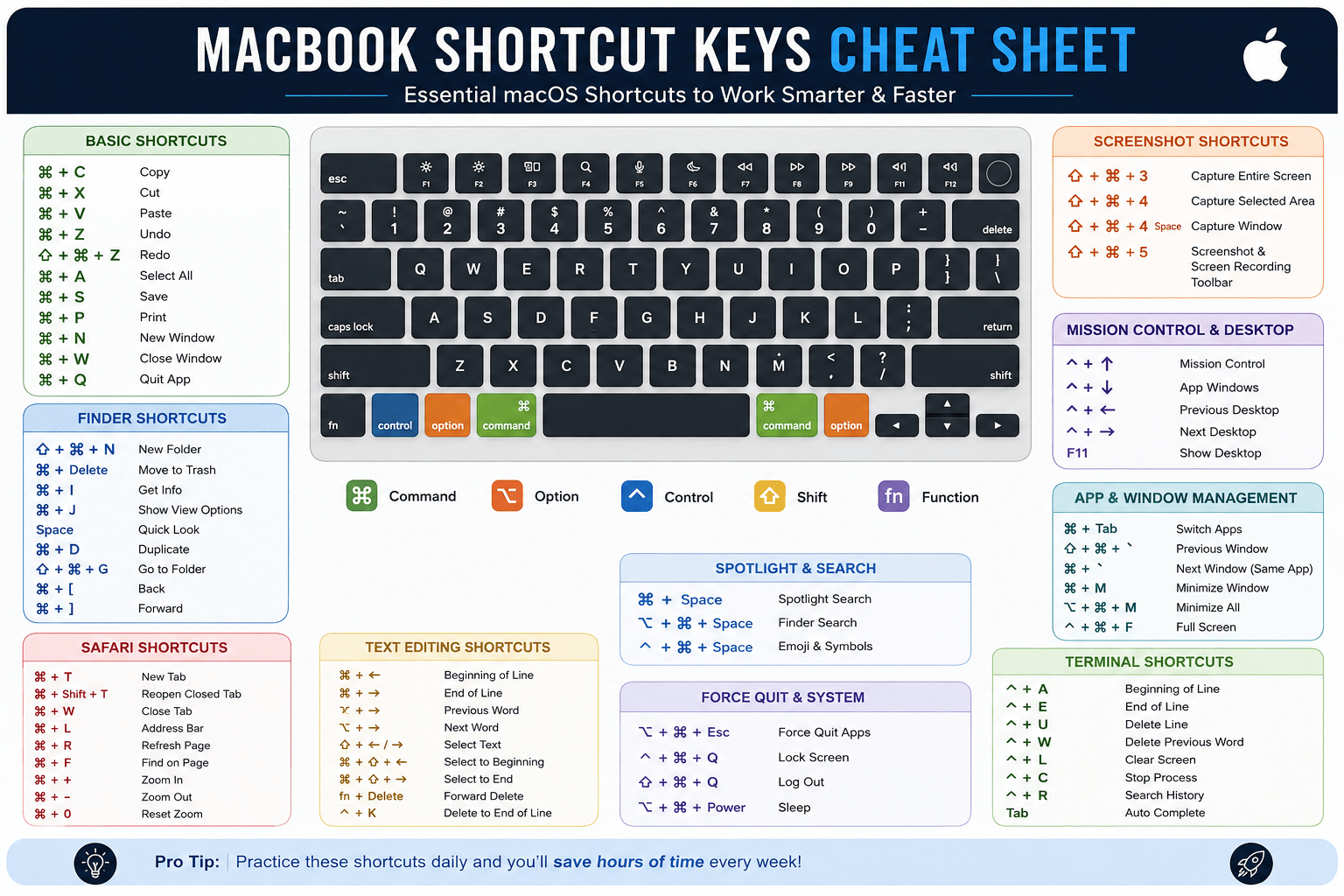
Understanding Mac Keyboard Symbols
Before learning shortcuts, it’s important to understand the special keys used in macOS.
| Symbol |
Key |
| ⌘ |
Command |
| ⌥ |
Option (Alt) |
| ⇧ |
Shift |
| ⌃ |
Control |
| fn |
Function |
| Esc |
Escape |
Most Mac shortcuts use the Command (⌘) key instead of Ctrl
used on Windows.
Basic MacBook Shortcuts
| Shortcut |
Function |
| ⌘ + C |
Copy |
| ⌘ + X |
Cut |
| ⌘ + V |
Paste |
| ⌘ + Z |
Undo |
| Shift + ⌘ + Z |
Redo |
| ⌘ + A |
Select All |
| ⌘ + S |
Save |
| ⌘ + P |
Print |
| ⌘ + N |
New Window or Document |
| ⌘ + O |
Open File |
| ⌘ + W |
Close Current Window |
| ⌘ + Q |
Quit Application |
| ⌘ + H |
Hide Current App |
| Option + ⌘ + H |
Hide Other Apps |
Finder Shortcuts
| Shortcut |
Function |
| ⌘ + N |
New Finder Window |
| Shift + ⌘ + N |
New Folder |
| ⌘ + Delete |
Move to Trash |
| Shift + ⌘ + Delete |
Empty Trash |
| Option + Shift + ⌘ + Delete |
Empty Trash Without Confirmation |
| ⌘ + I |
Get Info |
| ⌘ + J |
Show View Options |
| Space |
Quick Look |
| Return |
Rename Selected File |
| ⌘ + D |
Duplicate File |
| Shift + ⌘ + C |
Computer |
| Shift + ⌘ + H |
Home Folder |
| Shift + ⌘ + D |
Desktop |
| Shift + ⌘ + O |
Documents Folder |
| Shift + ⌘ + A |
Applications Folder |
| Shift + ⌘ + U |
Utilities Folder |
| Shift + ⌘ + G |
Go to Folder |
| ⌘ + [ |
Back |
| ⌘ + ] |
Forward |
Text Editing Shortcuts
| Shortcut |
Function |
| ⌘ + Left Arrow |
Beginning of Line |
| ⌘ + Right Arrow |
End of Line |
| Option + Left Arrow |
Previous Word |
| Option + Right Arrow |
Next Word |
| Shift + Arrow |
Select Text |
| Option + Shift + Arrow |
Select Word |
| ⌘ + Shift + Left Arrow |
Select to Beginning |
| ⌘ + Shift + Right Arrow |
Select to End |
| fn + Delete |
Forward Delete |
| Control + K |
Delete to End of Line |
| Control + A |
Beginning of Line |
| Control + E |
End of Line |
Safari Shortcuts
| Shortcut |
Function |
| ⌘ + T |
New Tab |
| ⌘ + Shift + T |
Reopen Closed Tab |
| ⌘ + W |
Close Tab |
| ⌘ + L |
Address Bar |
| ⌘ + R |
Refresh |
| Shift + ⌘ + R |
Hard Refresh |
| ⌘ + F |
Find on Page |
| ⌘ + Plus (+) |
Zoom In |
| ⌘ + Minus (-) |
Zoom Out |
| ⌘ + 0 |
Reset Zoom |
| ⌘ + Click Link |
Open in New Tab |
| Control + Tab |
Next Tab |
| Control + Shift + Tab |
Previous Tab |
Screenshot Shortcuts
| Shortcut |
Function |
| Shift + ⌘ + 3 |
Entire Screen |
| Shift + ⌘ + 4 |
Selected Area |
| Shift + ⌘ + 4 then Space |
Capture Window |
| Shift + ⌘ + 5 |
Screenshot & Screen Recording Toolbar |
| Shift + ⌘ + 6 |
Touch Bar Screenshot (Supported Models) |
Mission Control & Desktop
| Shortcut |
Function |
| Control + Up Arrow |
Mission Control |
| Control + Down Arrow |
App Windows |
| Control + Left Arrow |
Previous Desktop |
| Control + Right Arrow |
Next Desktop |
| F11 |
Show Desktop |
| fn + F11 |
Desktop (Some Models) |
Window Management
| Shortcut |
Function |
| ⌘ + M |
Minimize Window |
| Option + ⌘ + M |
Minimize All Windows |
| Control + ⌘ + F |
Full Screen |
| ⌘ + Tab |
Switch Apps |
| Shift + ⌘ + ` |
Previous Window |
| ⌘ + ` |
Next Window of Same App |
Spotlight & Search
| Shortcut |
Function |
| ⌘ + Space |
Spotlight Search |
| Option + ⌘ + Space |
Finder Search |
| Control + ⌘ + Space |
Emoji & Symbols |
System Shortcuts
| Shortcut |
Function |
| Option + Brightness |
Display Settings |
| Option + Volume |
Sound Settings |
| Option + Keyboard Brightness |
Keyboard Settings |
| Power Button |
Sleep/Wake |
| Control + Power |
Restart Dialog |
| Control + Shift + Power |
Turn Off Display |
Terminal Shortcuts
| Shortcut |
Function |
| Control + A |
Beginning of Line |
| Control + E |
End of Line |
| Control + U |
Delete Line |
| Control + W |
Delete Previous Word |
| Control + L |
Clear Screen |
| Control + C |
Stop Process |
| Control + D |
Logout |
| Control + R |
Search Command History |
| Tab |
Auto Complete |
| ↑ |
Previous Command |
| ↓ |
Next Command |
Browser Shortcuts (Chrome, Edge, Brave)
| Shortcut |
Function |
| ⌘ + T |
New Tab |
| ⌘ + Shift + N |
New Incognito Window |
| ⌘ + Shift + B |
Show/Hide Bookmarks |
| ⌘ + Shift + Delete |
Clear Browsing Data |
| ⌘ + D |
Bookmark Page |
| ⌘ + Shift + D |
Bookmark All Tabs |
| ⌘ + Option + Left Arrow |
Back |
| ⌘ + Option + Right Arrow |
Forward |
Microsoft Office Shortcuts
Word
| Shortcut |
Function |
| ⌘ + B |
Bold |
| ⌘ + I |
Italic |
| ⌘ + U |
Underline |
| ⌘ + K |
Insert Link |
| ⌘ + E |
Center |
| ⌘ + L |
Left Align |
| ⌘ + J |
Justify |
Excel
| Shortcut |
Function |
| ⌘ + ; |
Current Date |
| Control + ; |
Current Time |
| ⌘ + 1 |
Format Cells |
| ⌘ + Shift + K |
AutoSum |
| ⌘ + Arrow Keys |
Move to Data Edge |
| Shift + Space |
Select Row |
| Control + Space |
Select Column |
Developer Shortcuts
| Shortcut |
Function |
| ⌘ + ` |
Switch Editor Window |
| ⌘ + Shift + P |
Command Palette (VS Code) |
| ⌘ + B |
Toggle Sidebar |
| ⌘ + / |
Comment Line |
| Option + Shift + F |
Format Document |
| ⌘ + P |
Quick File Search |
| ⌘ + Shift + F |
Search Project |
| Control + ` |
Integrated Terminal |
Accessibility Shortcuts
| Shortcut |
Function |
| Command + Triple Press Touch ID |
Accessibility Shortcuts |
| Option + Command + F5 |
Accessibility Options |
| Control + Option + Command + 8 |
Invert Colors |
| Control + Option + Command + = |
Zoom In |
| Control + Option + Command + – |
Zoom Out |
Startup & Recovery Shortcuts
Use these while turning on your Mac.
| Shortcut |
Function |
| Power Button (Hold) |
Startup Options |
| Command + R |
macOS Recovery |
| Option + Command + R |
Internet Recovery |
| Shift |
Safe Mode |
| D |
Apple Diagnostics |
| Option |
Startup Disk Selection |
Emoji Shortcut
| Shortcut |
Function |
| Control + Command + Space |
Emoji Picker |
Force Quit Applications
| Shortcut |
Function |
| Option + Command + Esc |
Force Quit Window |
Sleep, Lock & Logout
| Shortcut |
Function |
| Control + Command + Q |
Lock Screen |
| Shift + Command + Q |
Log Out |
| Option + Shift + Command + Q |
Log Out Immediately |
| Option + Command + Power |
Sleep |
20 Most Important MacBook Shortcuts Everyone Should Know
- ⌘ + C — Copy
- ⌘ + V — Paste
- ⌘ + X — Cut
- ⌘ + Z — Undo
- ⌘ + S — Save
- ⌘ + A — Select All
- ⌘ + F — Find
- ⌘ + T — New Tab
- ⌘ + W — Close Window
- ⌘ + Q — Quit App
- ⌘ + Space — Spotlight Search
- Shift + ⌘ + 3 — Screenshot
- Shift + ⌘ + 4 — Area Screenshot
- Shift + ⌘ + 5 — Screen Recording
- ⌘ + Tab — Switch Apps
- ⌘ + L — Address Bar
- Option + Command + Esc — Force Quit
- Control + Command + Q — Lock Screen
- Shift + Command + N — New Folder
- Space — Quick Look
Final Thoughts
Learning MacBook keyboard shortcuts is one of the easiest ways to become more productive on
macOS. Whether you’re browsing the web, editing documents, writing code, organizing files, or multitasking between
applications, these shortcuts help you work faster while reducing reliance on the mouse or trackpad.
Start by memorizing the most common shortcuts such as Copy, Paste, Undo, Spotlight Search, Screenshots, and App
Switching. Once these become second nature, gradually learn more advanced shortcuts for Finder, Safari,
Terminal, Microsoft Office, and development tools. Over time, these keyboard shortcuts can save countless hours and make
using your MacBook significantly more efficient.
🚀 Learn Basic to Advanced Computer Courses at Affix Computers Academy
Want to master computers, improve your digital skills, or build a successful IT career? Join Affix Computers Academy, where we offer
practical, industry-focused computer courses designed for students, job seekers, professionals, and business owners.
Whether you’re a beginner or looking to upgrade your skills, our experienced trainers provide
hands-on learning with real-world projects to help you gain confidence and job-ready expertise.
Our Popular Computer Courses
- Basic Computer Course
- Advanced Computer Course
- Advanced Excel
- Tally with GST
- Graphic Design
- Web Designing & Development
- Digital Marketing
- Python Programming
- C & C++
- Java
- Flutter App Development
- MERN Stack Development
- Ethical Hacking & Cyber Security
- UI/UX Design
- AI Tools & Productivity Training
✅ Practical Training
✅ Experienced Faculty
✅ Job-Oriented Curriculum
✅ Affordable Course Fees
✅ Certificate on Course Completion
📍 Visit Affix Computers Academy
Branches: Sadopur, Chhapraula & Dadri (Greater Noida)
Enroll today and take the first step toward a successful career in
technology. Contact Affix Computers Academy to find the
right course for your goals and start learning with expert guidance.
Written by Affix Academy Faculty Team
Our certified digital instructors and IT career counselors are dedicated to providing clear, practical tutorials and hands-on professional software mentoring across Greater Noida & Delhi NCR.




Leave a Comment or Question
Your email address will not be published. Required fields are marked with an asterisk (*).